What is Gateway IP in Networking? The Complete Guide
In any modern network, devices must communicate beyond their local subnet to reach the internet or other networks. This is where the gateway IP comes into play. If you have ever configured a computer’s network settings or troubleshooted a “No Internet” error, you have encountered the term default gateway.

This article explains everything you need to know about gateway IP in networking – what it is, how it works, how to find it, and why it matters.
1. What is a Gateway IP?
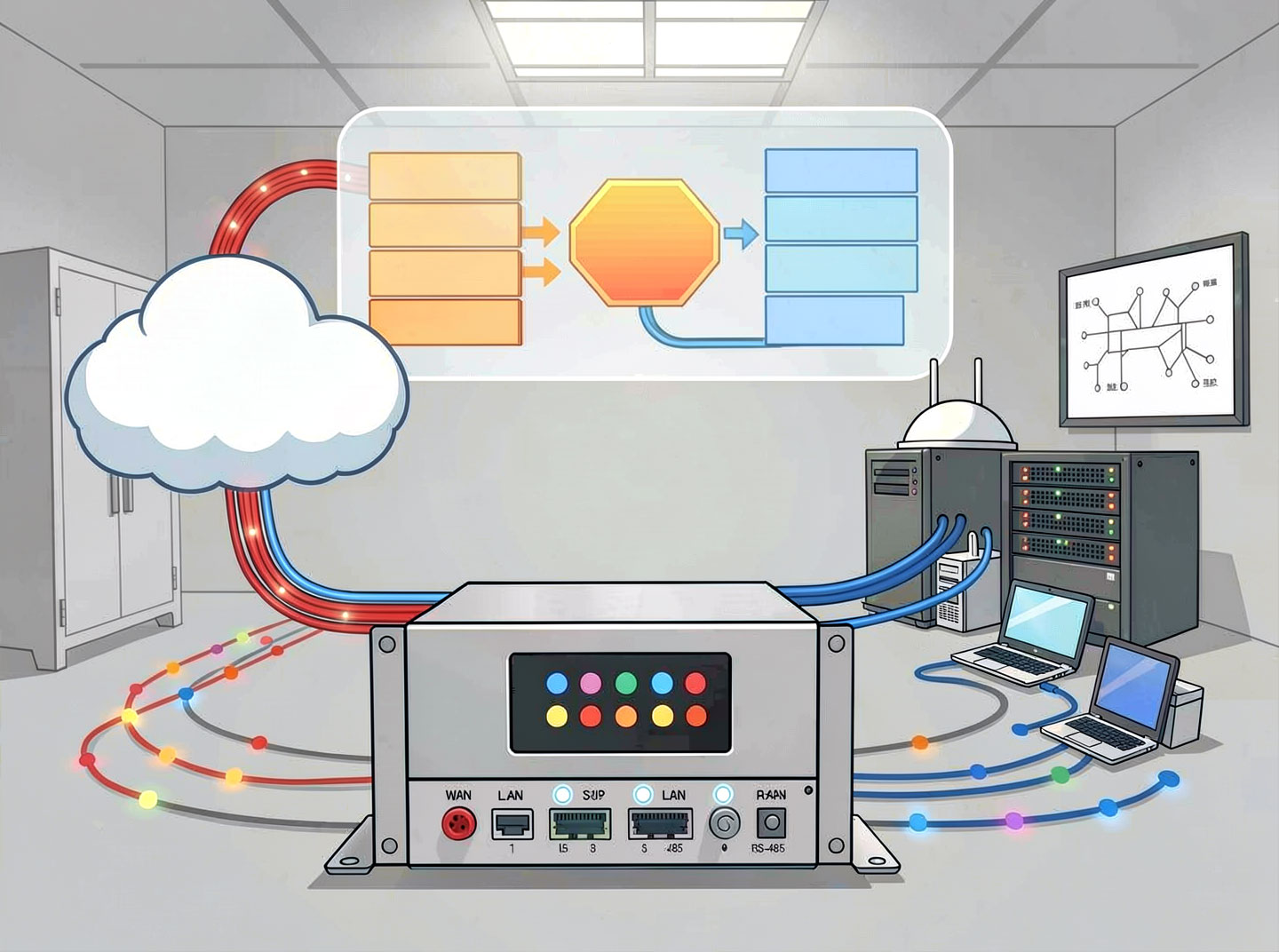
A gateway IP (often called a default gateway) is the IP address of a network node that serves as an access point to another network. In most home and small business environments, the gateway IP is the IP address of your router.

Think of the gateway IP as a door. If a device wants to send data to an IP address outside its own local network, it sends that data to the gateway IP. The gateway device then forwards the traffic to the destination – possibly across multiple networks – until it reaches the target.
Key characteristics:
It belongs to a router or layer‑3 switch that connects two or more networks.
It is configured on every host (computer, phone, printer) that needs external network access.
It operates at the network layer (Layer 3) of the OSI model.
2. Gateway IP vs. Gateway Device: What’s the Difference?
Many people confuse the gateway IP (an address) with the gateway device (hardware/software). Here is a simple distinction:
TermDefinitionExampleGateway IPA numeric address (e.g., 192.168.1.1) that points to the gateway device.192.168.1.1Gateway deviceThe actual physical or virtual device that performs routing and translation.Home router, firewall, or cloud NAT gateway.
Your computer does not know where the router is physically – it only knows the gateway IP. When you ping the gateway IP, you are checking the reachability of that device.
3. Why Every Device Needs a Default Gateway IP

Without a gateway IP, a device is confined to its own local subnet. Here is why the default gateway is essential:
Internet access – To reach any website (e.g., Google’s IP
8.8.8.8), your device sends packets to the gateway IP.Cross‑network communication – To connect to devices on a different floor, building, or VLAN.
Routing efficiency – The gateway IP tells your device where to send all “non‑local” traffic.
Network security – Firewalls and content filters are often placed at the gateway IP.
What happens if no gateway IP is configured?
The device will only communicate with other devices inside its own subnet. It cannot access the internet or any external network.
4. How a Gateway IP Works (Step-by-Step)
Here is a simplified step‑by‑step of how a gateway IP is used:
Device A wants to send data to Device B with IP
203.0.113.5.Device A compares
203.0.113.5with its own subnet mask (e.g.,255.255.255.0). If they are not in the same subnet, Device A knows the packet must go to the default gateway.Device A checks its routing table. The entry
0.0.0.0/0(default route) points to the gateway IP (e.g.,192.168.1.1).Device A sends the packet to
192.168.1.1(the gateway IP).The gateway device receives the packet, looks up the best path, and forwards it toward
203.0.113.5.
This happens in milliseconds and is repeated for every external packet.
5. Common Gateway IP Addresses (With Examples)
Different networks use different default gateway IP ranges. Below is a list of the most common gateway IP addresses:
Manufacturer / SetupCommon Gateway IPNotesLinksys, Asus, TP‑Link (many home routers)192.168.1.1Most commonNetgear, some D‑Link192.168.0.1Second most commonCisco (small business)192.168.1.254Often used to avoid conflictArris / Comcast Xfinity10.0.0.1Common in cable modemsUbiquiti UniFi192.168.1.1 or 192.168.0.1User‑configurableWindows Internet Connection Sharing192.168.137.1When using ICSMikroTik RouterOS192.168.88.1Default for MikroTikEnterprise / CorporateVariable (often .1 or .254 on management VLAN)
Pro tip: If you do not know your gateway IP, check the sticker on your router or use the methods described in section 6.
6. How to Find Your Gateway IP on Any Device

Finding your default gateway IP is a basic but essential network troubleshooting skill. Here is a list of methods per operating system:
Windows
Open Command Prompt (
cmd) and type:ipconfig
Look for Default Gateway under your active adapter (e.g.,192.168.1.1).
macOS
Go to System Settings → Network → select active connection → Details → Router (that is your gateway IP).
Or open Terminal and type:netstat -nr | grep default
Linux
In a terminal:
ip route | grep default
The output showsdefault via 192.168.1.1– that IP is your gateway.
Android
Settings → Wi‑Fi → tap on connected network → Advanced → Gateway (or Router).
iOS (iPhone/iPad)
Settings → Wi‑Fi → tap the (i) icon next to your network → Router IP address.
Router’s own web interface
Usually
http://192.168.1.1orhttp://192.168.0.1. Log in with admin credentials.
7. Gateway IP vs. DNS vs. Subnet Mask – A Quick Comparison
These three network settings are often confused. Use this list to distinguish them:
SettingPurposeExampleGateway IPWhere to send packets destined for outside the local subnet192.168.1.1Subnet maskDefines which IP addresses are “local” vs. “remote”255.255.255.0DNS serverTranslates domain names (google.com) into IP addresses8.8.8.8
Simple rule:
Gateway IP = exit door from your network.
DNS = phonebook for the internet.
Subnet mask = determines the size of your neighborhood.
8. How to Change or Configure Your Gateway IP

You normally do not change the gateway IP on individual devices – you change it on the router itself. However, in advanced configurations (static IP assignment), you may manually set a gateway IP.
Changing the gateway IP on a Windows PC (static configuration):
Open Network & Internet Settings → Change adapter options.
Right‑click your adapter → Properties → Internet Protocol Version 4 (TCP/IPv4).
Select Use the following IP address.
Enter a static IP, subnet mask, and Default gateway (e.g.,
192.168.1.1).Click OK.
Changing the gateway IP on your router (advanced):
Log into the router’s admin panel.
Look for LAN or Network settings.
Change the Router IP Address (this is the gateway IP for all clients).
Save and reboot. All devices will need to renew DHCP leases.
Caution: Changing the router’s LAN IP can disconnect all devices. Plan accordingly.
9. Troubleshooting: Gateway IP Issues and Fixes
Here are common problems related to the gateway IP and how to resolve them.
Issue 1: “Default gateway is not available” (Windows error)
Fix: Update network drivers, disable power saving on the network adapter, or reset TCP/IP stack (
netsh int ip reset).
Issue 2: Can ping gateway IP but no internet
Fix: The gateway device itself may have lost its upstream connection. Check the modem/WAN port. Also verify DNS settings.
Issue 3: Duplicate gateway IP on the network
Fix: Two devices cannot share the same IP. Disconnect one device or change its static IP.
Issue 4: Gateway IP is 0.0.0.0 or blank
Fix: Renew DHCP lease (
ipconfig /renewon Windows) or set a static gateway IP manually.
Quick diagnostic commands:
CommandPurposeping <gateway IP>Test if gateway device is alive.tracert 8.8.8.8See the path: first hop should be your gateway IP.arp -aList all devices (including gateway) on the local network.
10. Gateway IP in IPv6 vs. IPv4

With IPv6, the concept is similar but the terminology and format change.
IPv4 gateway IP – Dotted decimal, e.g.,
192.168.1.1IPv6 default gateway – Hexadecimal, e.g.,
fe80::1(link‑local address) or a global unicast address.
In IPv6, devices often discover the gateway automatically via Router Advertisements (RA). You can still view it with:
ipconfig(Windows) → Default Gateway under IPv6.ip -6 route show default(Linux).
Most home networks still use IPv4 for the default gateway, but dual‑stack (both IPv4 and IPv6 gateways) is common.
11. Security Considerations: Gateway IP Spoofing and Attacks

Your gateway IP is a critical security boundary. Attackers may attempt:
ARP spoofing – Pretending to be the gateway IP to intercept traffic.
Gateway IP change – Malware modifies your routing table to send traffic to a malicious gateway.
Gateway device compromise – If the router (the gateway IP) is hacked, the entire network is at risk.
Mitigations:
Use static ARP for critical networks.
Enable DHCP snooping and ARP inspection on managed switches.
Regularly change the router’s admin password.
Use VPN when on untrusted networks.
Monitor the default gateway IP for unexpected changes (e.g., with
arp -a).
12. Frequently Asked Questions (FAQ)
Q1: Is my default gateway IP the same as my public IP?
No. The default gateway IP is a private (internal) address. Your public IP is assigned by your ISP and is visible to the internet.
Q2: Can two different subnets have the same gateway IP?
Yes, if they are separate networks (e.g., VLAN 10 uses 192.168.10.1, VLAN 20 uses 192.168.20.1). But on the same broadcast domain, duplicate IPs cause conflicts.
Q3: What is the difference between default gateway and static route?
The default gateway is a special route (0.0.0.0/0) that matches all destinations. A static route is used for specific subnets.
Q4: Why do I see multiple default gateways when I run route print?
This can happen if you have multiple network adapters (e.g., Ethernet + Wi‑Fi) or if you manually added a second default gateway – which often causes routing problems.
Q5: What is a gateway IP of last resort?
Same as default gateway – the router to which a device sends packets when no specific route exists.
13. Conclusion
Understanding the gateway IP is fundamental to networking. It is the address that every device uses to escape its local subnet and reach the wider world – whether that is the internet, another department, or a cloud service.
Key takeaways:
The gateway IP is the IP address of your router or layer‑3 switch.
Without a correct default gateway, a device cannot communicate outside its own subnet.
Common gateway IPs include
192.168.1.1,192.168.0.1, and10.0.0.1.You can find your gateway IP via
ipconfig,ip route, or your device’s Wi‑Fi settings.A misconfigured or compromised gateway IP can break or endanger your entire network.
Whether you are setting up a home network, troubleshooting a connection, or studying for a certification, mastering the gateway IP concept will save you hours of frustration. Now you know exactly what it is – and how to work with it.
Bonus: Quick Reference – Gateway IP Commands List
PlatformCommand / ActionWindowsipconfigLinux / macOSip route show defaultmacOS (old)netstat -nr | grep defaultAndroidSettings → Wi‑Fi → tap network → AdvancediOSSettings → Wi‑Fi → (i) → Router